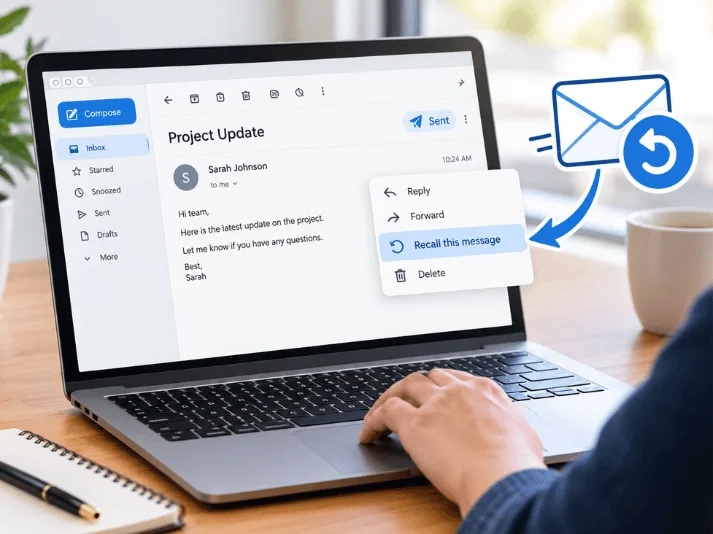
Sending the wrong message can create an immediate rush of panic. Fortunately, several major services provide ways to stop or retract recent messages. How to recall email depends mainly on your provider, account type, and how quickly you act.
Direct answer: You can sometimes recall or unsend a message, but the rules vary by provider. Outlook supports true recall in certain Microsoft 365 organizations. Gmail and Apple Mail delay delivery briefly, giving you an undo window. Yahoo Mail does not offer a standard recall feature after sending.
Email Recall Options at a Glance
| Email service | Can you recall or unsend? | Typical limitation | Best action |
|---|---|---|---|
| Microsoft Outlook | Yes, in qualifying Microsoft 365 accounts | Usually requires accounts in the same organization | Use Recall Message. |
| Gmail | Yes, briefly. | The cancellation window is 5–30 seconds. | Select Undo immediately. |
| Apple Mail | Yes, briefly. | Uses a configurable send delay | Select Und o Send |
| iCloud Mail | Yes, briefly. | Default delay is 10 seconds. | Select Und o Send |
| Yahoo Mail | No standard recall after sending | Sent messages cannot normally be retracted. | Send a correction. |
The difference between recall and undo-send matters. A true recall tries to remove a message after it reaches another mailbox. Undo-send normally delays transmission for several seconds instead.
Businesses using several communication platforms should document which system handles important messages. Marketries’ business app guide for U.S. companies discusses choosing tools around real workflows and communication needs.
What You’ll Need Before Trying to Recall a Message
Act as soon as you notice the mistake. Open the same account and application used to send the message. Your available options may disappear after only a few seconds.
For Outlook, confirm whether your account belongs to a Microsoft 365 work or school organization. Microsoft’s true recall feature has stricter requirements than common undo-send tools. Messages involving personal or external accounts often cannot use true recall.
For Gmail or Apple Mail, look immediately for an Undo or Undo Send button. These services generally hold outgoing messages during a short cancellation period. After that period expires, the message proceeds normally.
How to Recall Email in Microsoft Outlook
Microsoft Outlook offers the closest feature to a traditional message recall. It works only under specific account and organization conditions. Microsoft says both users generally need qualifying Microsoft 365 work or school accounts within the same organization.
Recall a Message in New Outlook or Outlook on the Web.
- Open Sent Items in Outlook.
- Open the message you want to retrieve.
- Choose Recall Message from the available message actions.
- Confirm the recall request.
- Watch for the Message Recall Report in your inbox.
- Open that report to check whether the attempt succeeded.
Microsoft provides a status report showing success, failure, or pending results. That feedback is useful when several recipients received the original message. A recall request should never be treated as guaranteed.
Recall a Message in Classic Outlook
- Open Sent Items.
- Double-click the sent message.
- Open the Message tab.
- Find Actions or More Move Actions.
- Choose Recall This Message.
- Select whether to delete unread copies or replace the message.
- Confirm your choice.
Classic Outlook may also let you send a replacement version. That option helps when an attachment, figure, or important detail was missing. Microsoft notes that recall availability depends on the account and organizational environment.
Why an Outlook Recall May Fail
The recipient may already have opened the original message. The accounts may also belong to different organizations or unsupported personal services. Microsoft’s documentation excludes personal accounts such as Outlook.com from true message recall.
Outlook.com users can instead configure an undo-send delay. Microsoft allows personal users to delay outgoing messages for up to 30 seconds. That feature prevents delivery rather than pulling a delivered message back.
Companies should include these limitations in internal communication policies. Clear workplace procedures help employees understand what to do after sending confidential or incorrect information. Marketries covers related policy considerations in its company policy development guide.
How to Unsend a Message in Gmail
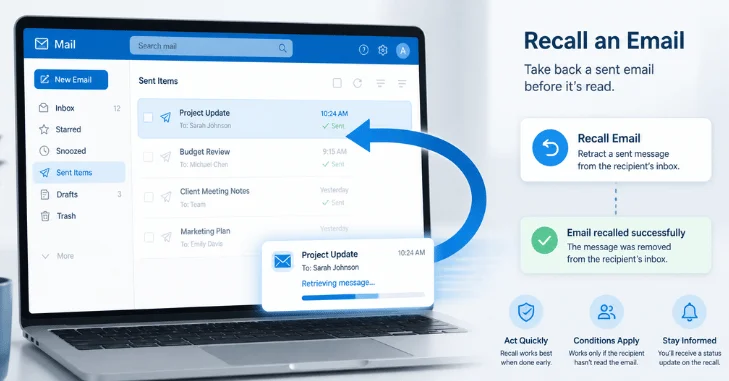
Gmail does not provide traditional recall after a message has fully left the cancellation period. Instead, Google delays sending for a short period. You can use that delay to stop the message before final delivery.
Use Gmail’s Undo Send Feature.
- Send your message normally.
- Look at the lower-left corner after sending.
- Select Undo before the notification disappears.
- Gmail returns the message to editing mode.
- Correct the message or discard it.
Google lets users choose cancellation periods of 5, 10, 20, or 30 seconds. You can change this under Gmail settings on a computer. A longer period gives you more time to catch mistakes.
For many U.S. small businesses, Gmail arrives through Google Workspace. Marketries includes Google Workspace among practical productivity options for business communication.
Set Gmail to Give You More Time
Open Gmail and select the settings icon. Choose See all settings, then locate the Undo Send setting. Select the longest cancellation period if accidental messages are a recurring concern.
A 30-second delay will not protect you from every mistake. It does create a useful review window after pressing Send. That extra time can prevent incorrect recipients, missing attachments, or unfinished messages.
How to Unsend Email in Apple Mail
Apple Mail provides Undo Send by delaying outgoing messages briefly. On Mac, Apple says the default window is 10 seconds. Users can change the undo-send delay through Mail settings.
Use Undo Send. o Send on a Mac
- Send your message.
- Look near the bottom of the Mail sidebar.
- Select Undo or Send before the delay expires.
- Edit or delete the returned draft.
Apple also allows users to choose Edit > Undo during the active delay. Once that window closes, the standard undo feature is no longer available. Configuring a longer delay beforehand can provide more protection.
Use Undo. o Send on an iPhone
- Send the message from the Mail app.
- Look for > Send in the inbox.
- Tap it within the available delay.
- Correct or discard the returned message.
Apple says iPhone users receive a short default opportunity to reverse sending. The delay can be adjusted under the Mail settings on supported iOS versions. This mechanism delays transmission rather than deleting a delivered message.
What About iCloud Mail?
iCloud Mail on the web also provides Undo Send. Apple states that the default period is 10 seconds. Users can adjust the delay through iCloud Mail’s composing settings.
The practical lesson is simple across Apple’s mail products. Configure the delay before you need it. A longer safety window can make routine mistakes easier to correct.
Can You Recall a Sent Message in Yahoo Mail?
Yahoo’s help documentation says sent messages cannot be recalled through its standard service. Once the message has been sent, you should assume the recipient can access it. Yahoo recommends reviewing saved drafts carefully before sending.
If the mistake is harmless, send a short correction immediately. If sensitive information was exposed, follow your employer’s security or incident procedures. Do not rely on deleting your own sent copy.
This distinction matters because online guides sometimes describe provider features inaccurately. Official provider documentation should take priority when account behavior or security is involved. Current Yahoo documentation does not promise traditional recall.
What to Do When It’s Too Late to Recall the Message
A missed recall window does not always require a complicated response. Most ordinary errors can be corrected with a clear follow-up message. Keep your correction short and identify exactly what changed.
For example, send a corrected attachment if you attached the wrong version. State the correct meeting time if the first message included an incorrect schedule. Avoid creating another long thread that increases confusion.
Sensitive information requires greater care. Contact your manager, security team, or administrator when company data may be exposed. Your organization may have reporting procedures that matter more than sending another message.
How to Prevent Email Mistakes Before They Happen
A short sending delay is one of the easiest safeguards available. Gmail, Outlook.com, and Apple Mail provide delay-based options that can create a correction window. Configure those settings before an urgent message exposes the weakness.
You should also pause before sending messages containing customer, financial, or employee information. Check recipients, attachments, subject lines, and confidential details. This simple review is especially useful when autocomplete suggests similar contact names.
Workplace communication rules can reduce repeated mistakes across a team. The Marketries’ Office section includes broader guidance for managing workplace practices and communication.
Quick Pre-Send Checklist
- Confirm every To, Cc, and Bcc recipient.
- Open important attachments before sending.
- Check names, dates, dollar amounts, and deadlines.
- Remove internal notes from forwarded threads.
- Review sensitive information before external messages.
- Use scheduled sending for messages needing another review.
- Configure the longest practical undo-send delay.
These checks take less time than correcting many avoidable mistakes. They also work regardless of which mail provider your company uses. Prevention remains more dependable than message retrieval.
Frequently Asked Questions About Recalling Sent Email
How to recall email after it has already been sent?
Your options depend on the provider and account type. Outlook can perform a true recall in certain Microsoft 365 organizations. Gmail and Apple Mail mainly offer brief cancellation windows instead.
Can I recall a Gmail message after 30 seconds?
Google’s available Undo Send window tops out at 30 seconds. After the cancellation period expires, the standard Gmail undo option is gone. You should send a correction if necessary.
Can Outlook recall a message sent to Gmail?
Microsoft’s true recall does not normally work for messages sent to external Gmail accounts. The feature generally requires qualifying Microsoft 365 accounts inside the same organization. External recipients therefore fall outside the normal recall conditions.
Does deleting a sent message remove it from the recipient’s inbox?
Deleting your own sent copy normally affects only your mailbox. It does not automatically remove a separate copy delivered elsewhere. Use the provider’s supported recall or undo feature instead.
Can the recipient see that I tried to recall a message?
The outcome depends on the provider and recall situation. Outlook provides the sender with a recall status report for supported attempts. You should never assume the original message became invisible without confirming the result.
The Best Approach Is to Act Quickly
Knowing your provider’s rules removes guesswork during a sending mistake. Outlook has the strongest true recall option, but its eligibility rules are narrow. Gmail and Apple Mail depend mainly on short delivery delays.
Set the longest useful cancellation period before you need it. Create an internal process for messages containing sensitive business information. When retrieval is impossible, send a prompt correction and follow company security procedures.